Manage Inactive Users for Jira (Cloud)
- ILA eSolution
Simple add-on to Deactivate users who left organization and remove license or security access groups for Inactive users.
Our App Elastic IP for whitelisting on your Directory environment. (Optional)
35.165.223.147
Use Cases:
- To Deactivate Jira or Confluence Cloud users who left / not exists in organization.
- To Remove license / access groups for inactive users.
- Supported remote user directories:
- Microsoft Azure AD
- Google G-Suite
- Okta
- One Login (Coming soon)
QUICK START STEPS
Here is Quick Start Steps to start using this plugin.
Verified Domain
STEP-1
Go to, Settings > Apps > Click Manage Inactive Users
Define Default Connection directory and Click update.
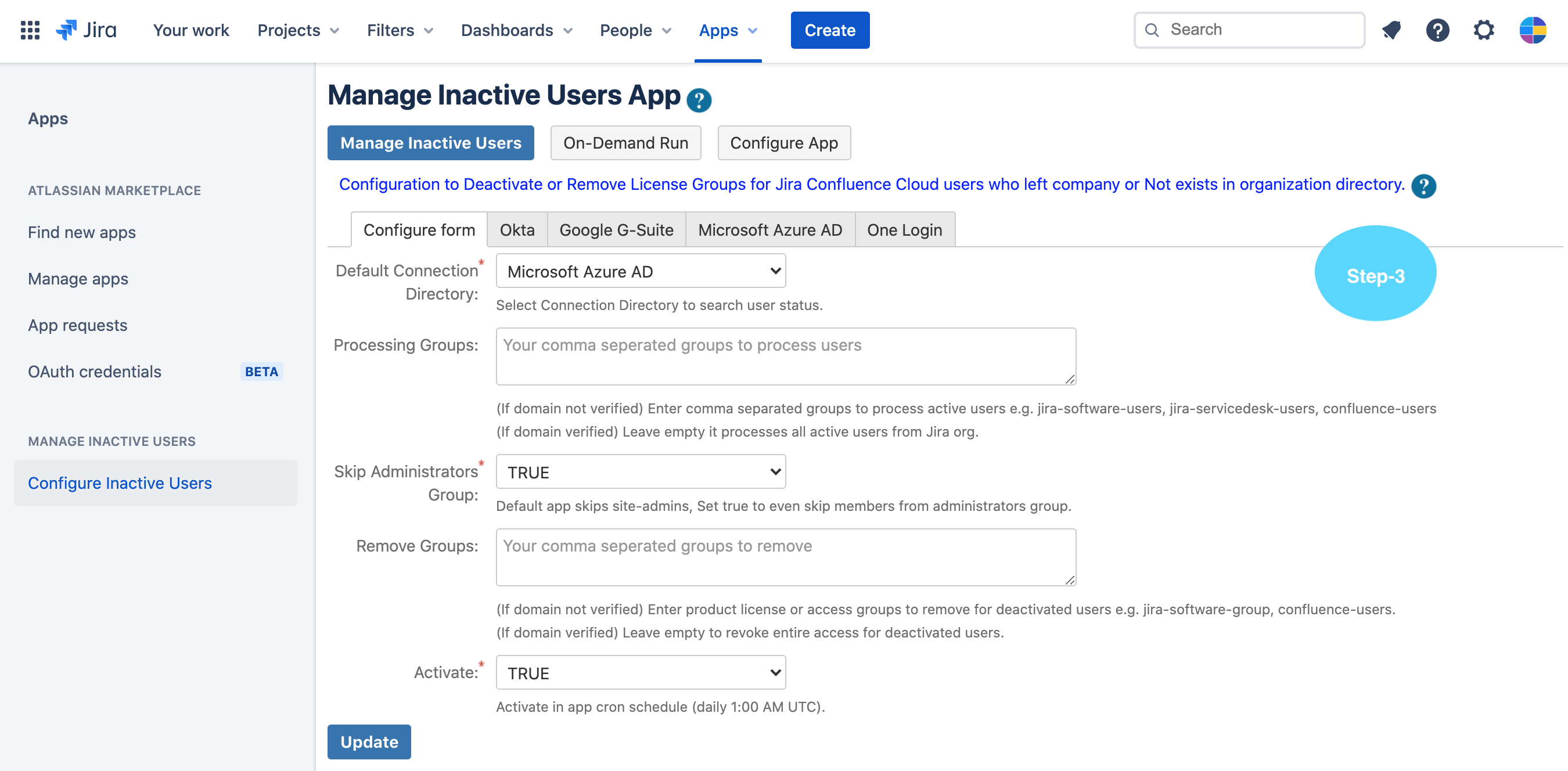
Note:
- Default Connection Directory (Required): To check user existence and status.
STEP-2
Configure default Connection directory e.g. Microsoft Azure AD.
Click Microsoft Azure AD Tab and Configure.
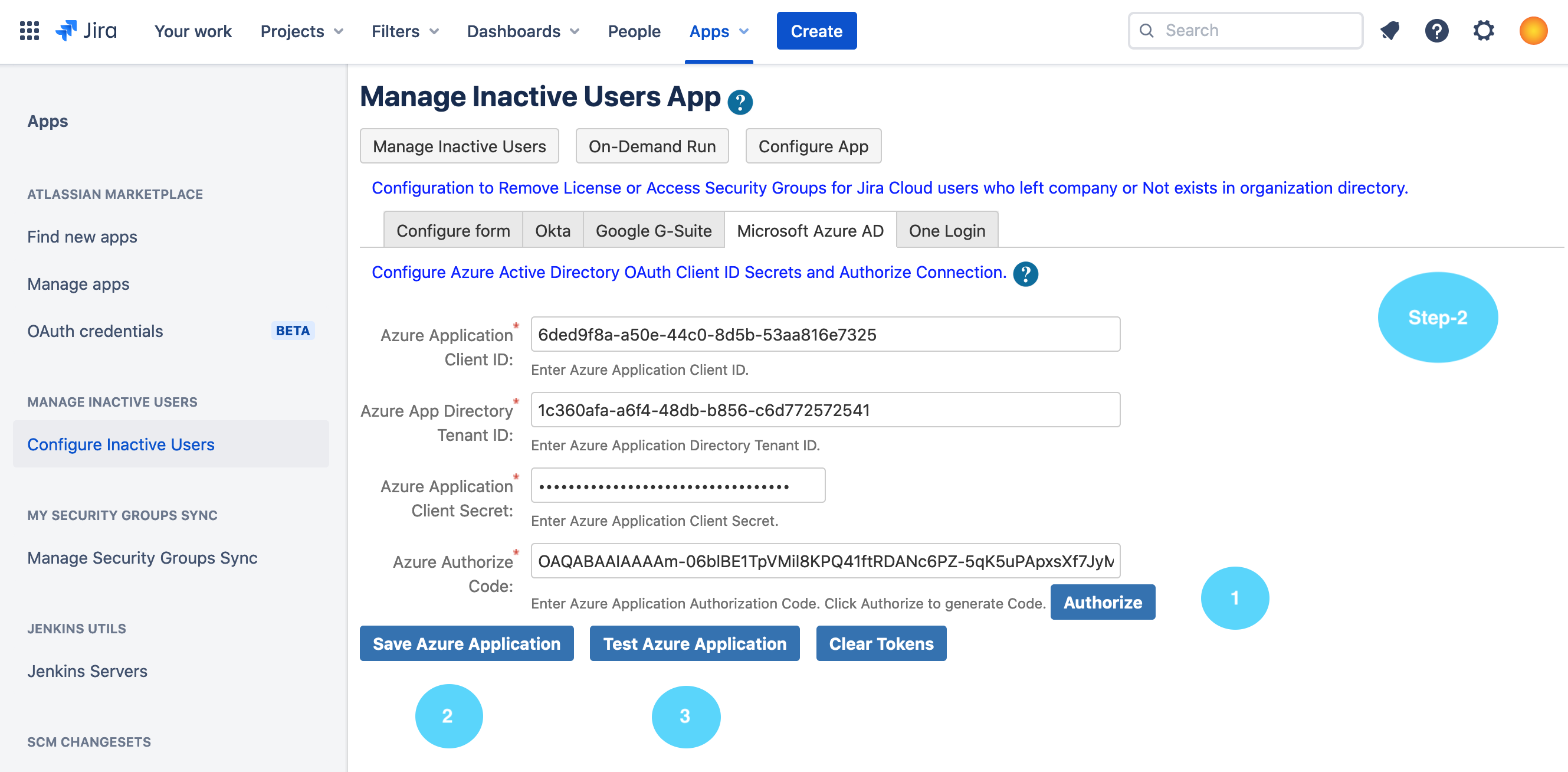
Microsoft Azure AD FAQ → Azure AD Application Registration and Permissions
Google G-Suite FAQ → Create Google OAuth Client ID / Secrets
Okta FAQ → Okta API Token Help
STEP-3
Configure Admin API key.
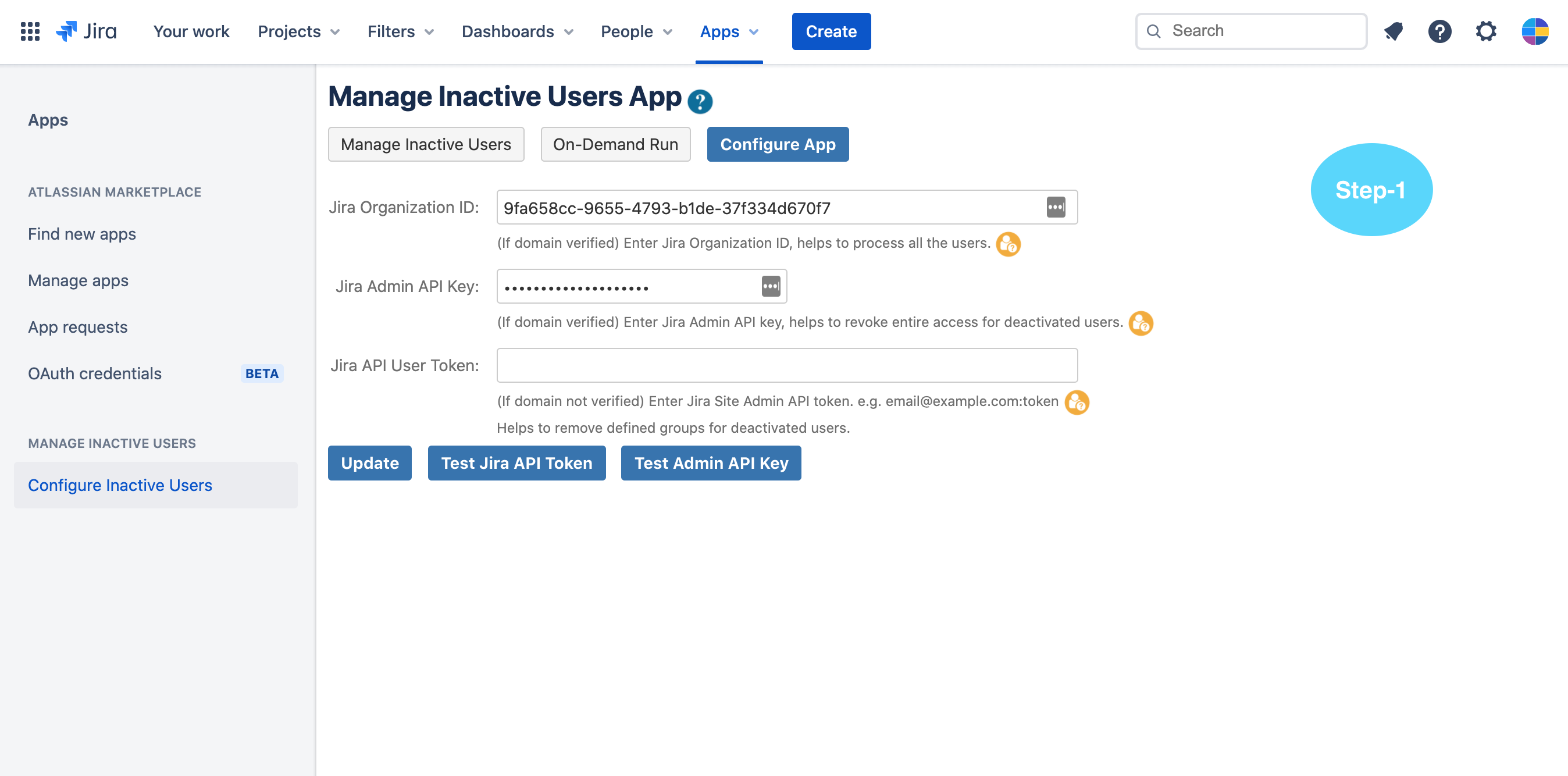
FAQ → Jira Cloud Admin API Key
Unverified Domain
STEP-1
Go to, Settings > Apps > Click Manage Inactive Users
Define Default Connection directory, processing groups, remove groups and Click update.
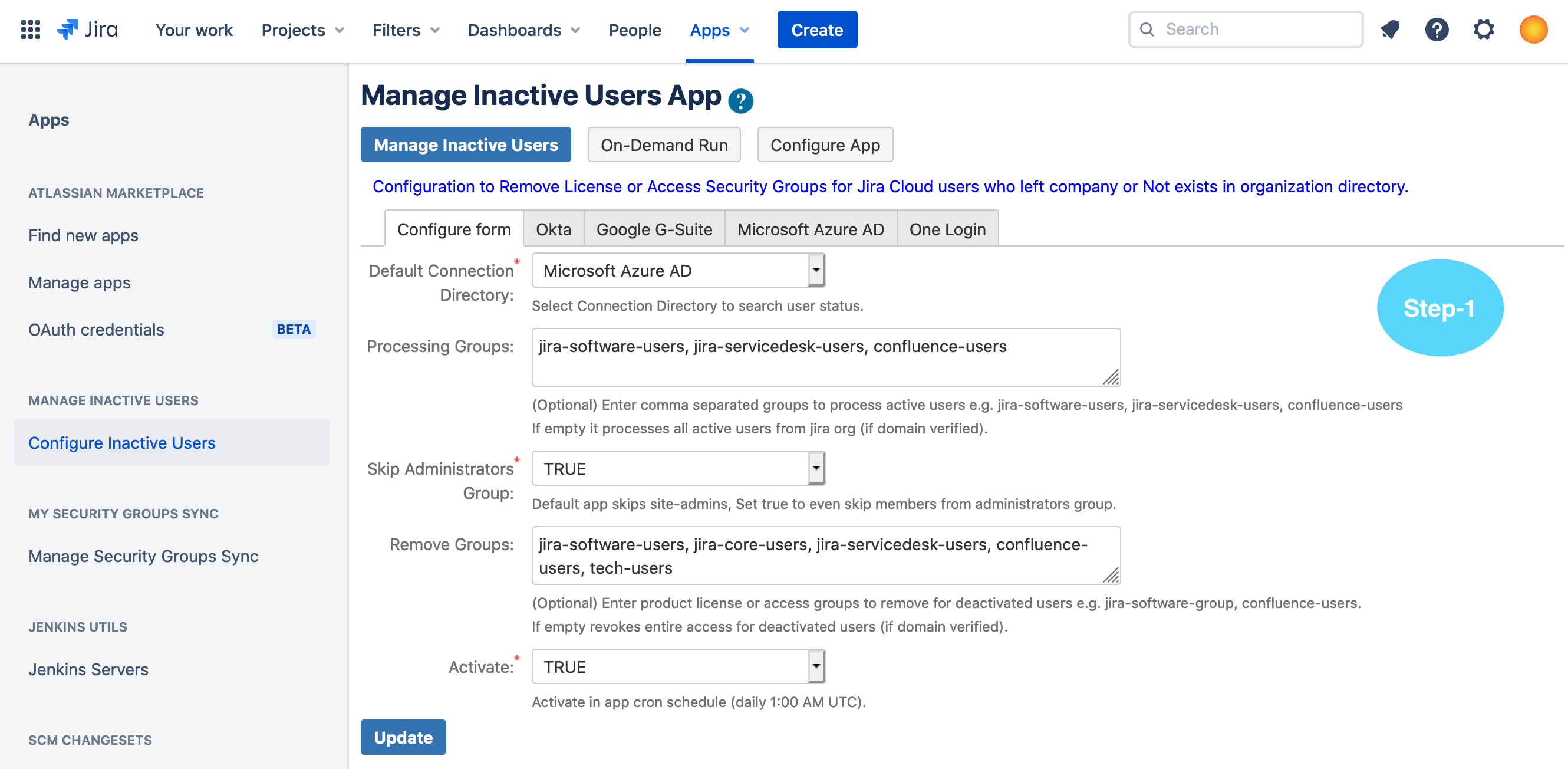
Note:
- Default Connection Directory (Required): To check user existence and status.
- Processing Group (Required): It gives flexibility to process users for deactivation from specific group (e.g tech-users).
- For testing you can use the group with small number of users.
- Remove Groups (Required): Enter a comma separated groups to remove for Deactivated / Inactive users
STEP-2
Configure default Connection directory e.g. Microsoft Azure AD.
Click Microsoft Azure AD Tab and Configure.
Microsoft Azure AD FAQ → Azure AD Application Registration and Permissions
Google G-Suite FAQ → Create Google OAuth Client ID / Secrets
Okta FAQ → Okta API Token Help
STEP-3
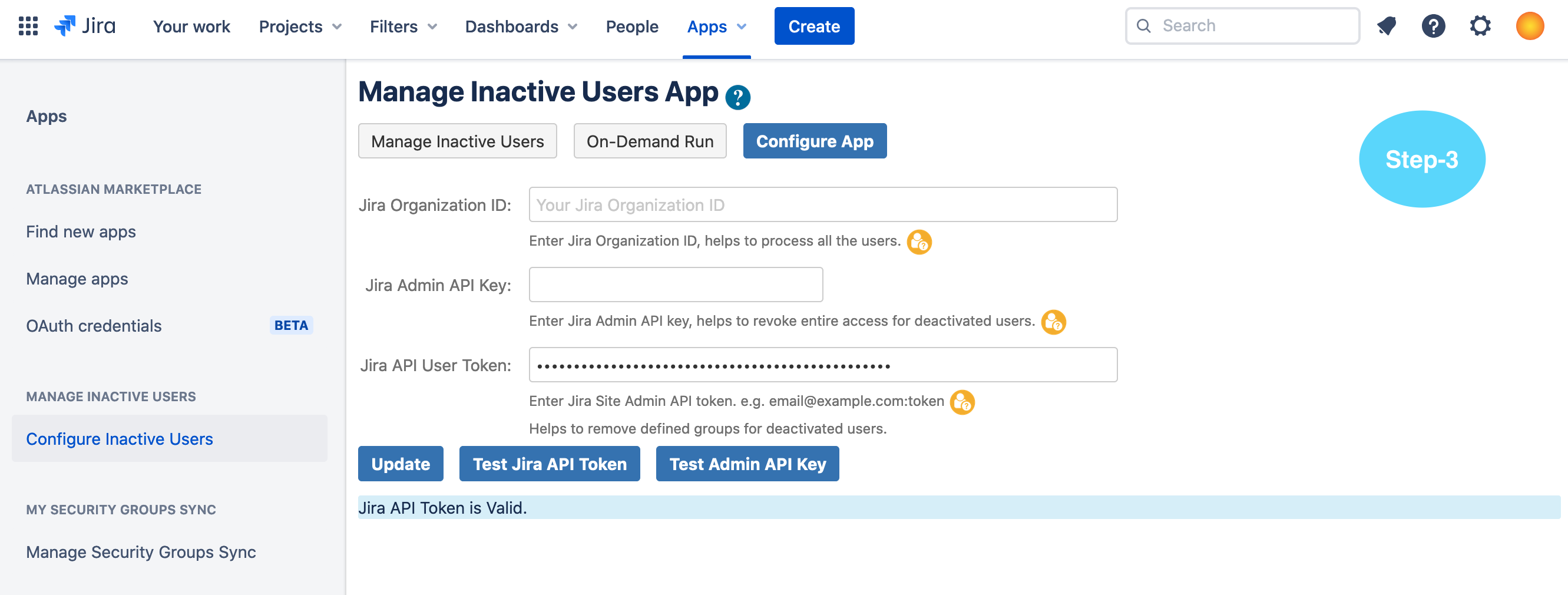
Configure Jira API token.